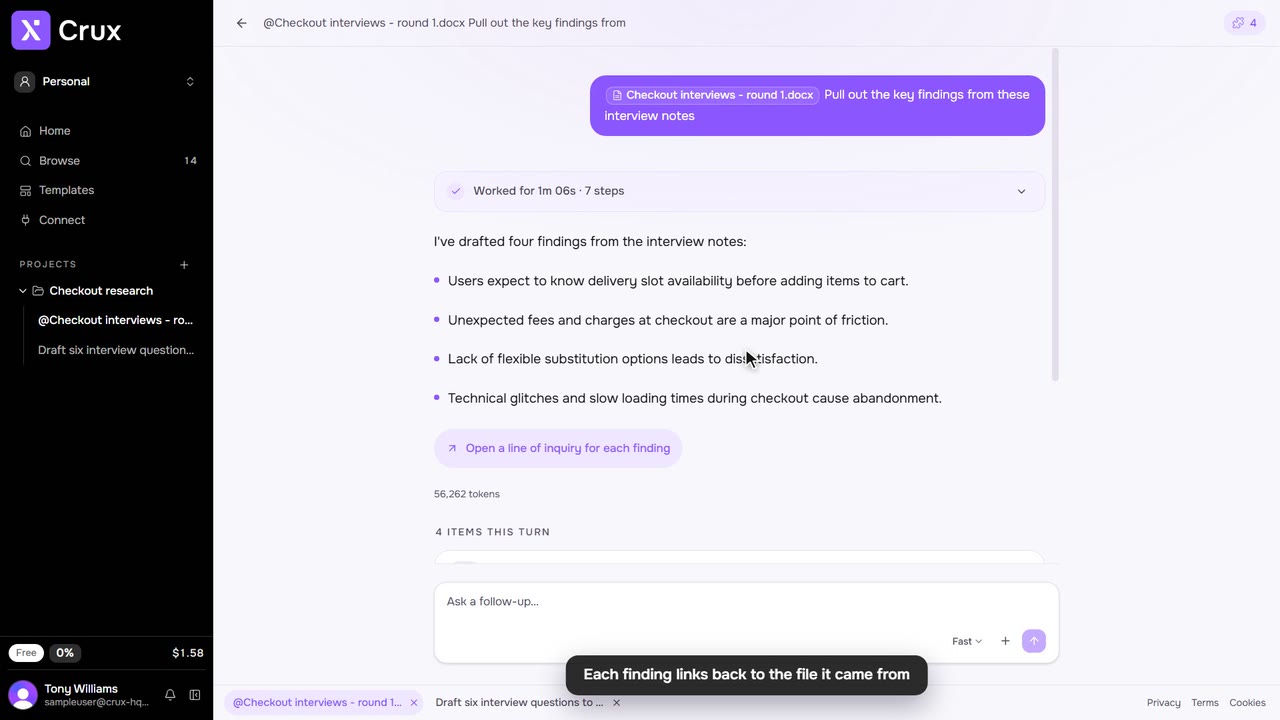
If your research lives in another tool, connect it once and mention it in a message. Crux reads only what you can see there, and only when you ask.
Step by step
Step 1: Open Connect
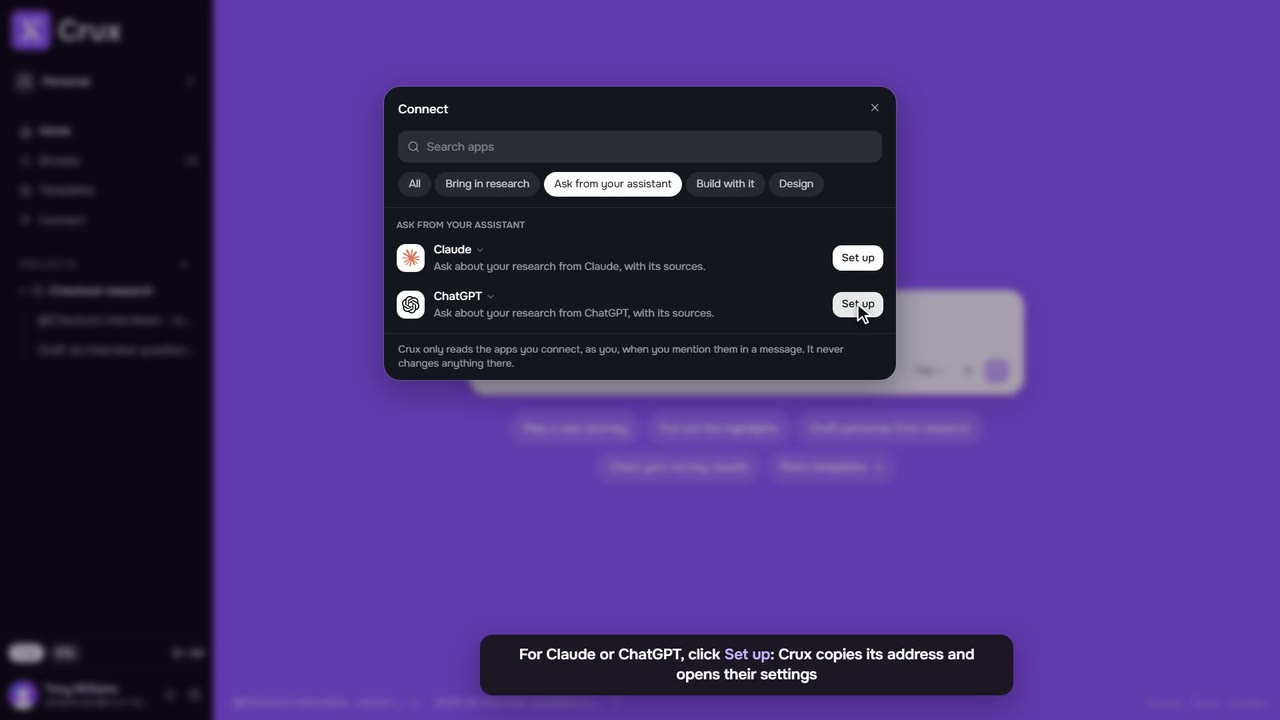
In the sidebar, click Connect, then choose Bring in research or search for the app.
Step 2: Connect the app
For Notion, Confluence or Jira, click Connect and sign in to that app in the tab that opens. If you close that tab before you finish, the app shows Resume to pick the sign-in up again and Cancel to leave it unconnected. For Dovetail, paste an API key into Dovetail API key and click Connect, or Cancel to leave it for now.
Step 3: Ask from it
In any thread, name the app in your message, for example What does our Notion say about onboarding? Crux reads what it needs and files what it finds in your project.
Step 4: Disconnect
Open Connect again and use the disconnect control next to the app.
Tips
- Access is read-only, and a connected app is only read when a message mentions it.
- If Atlassian refuses the connection, an admin needs to allow Crux in the Rovo MCP server settings.
- You need to be signed in to connect apps.