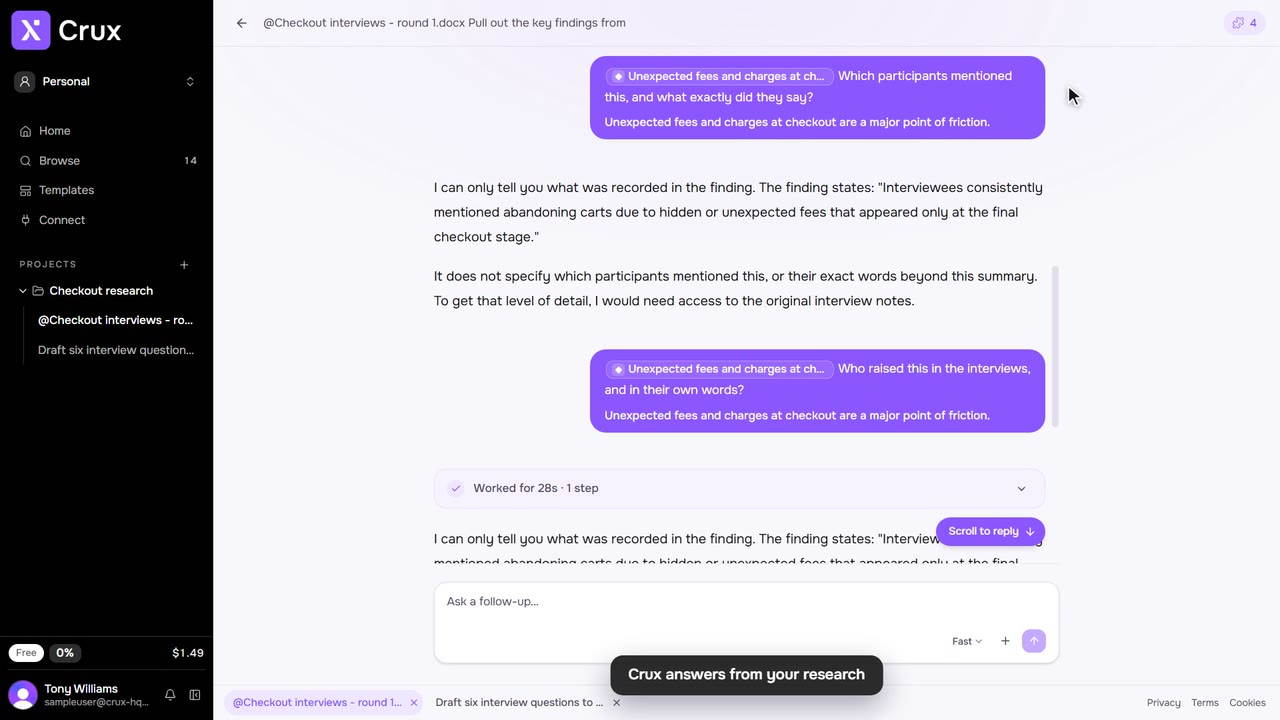
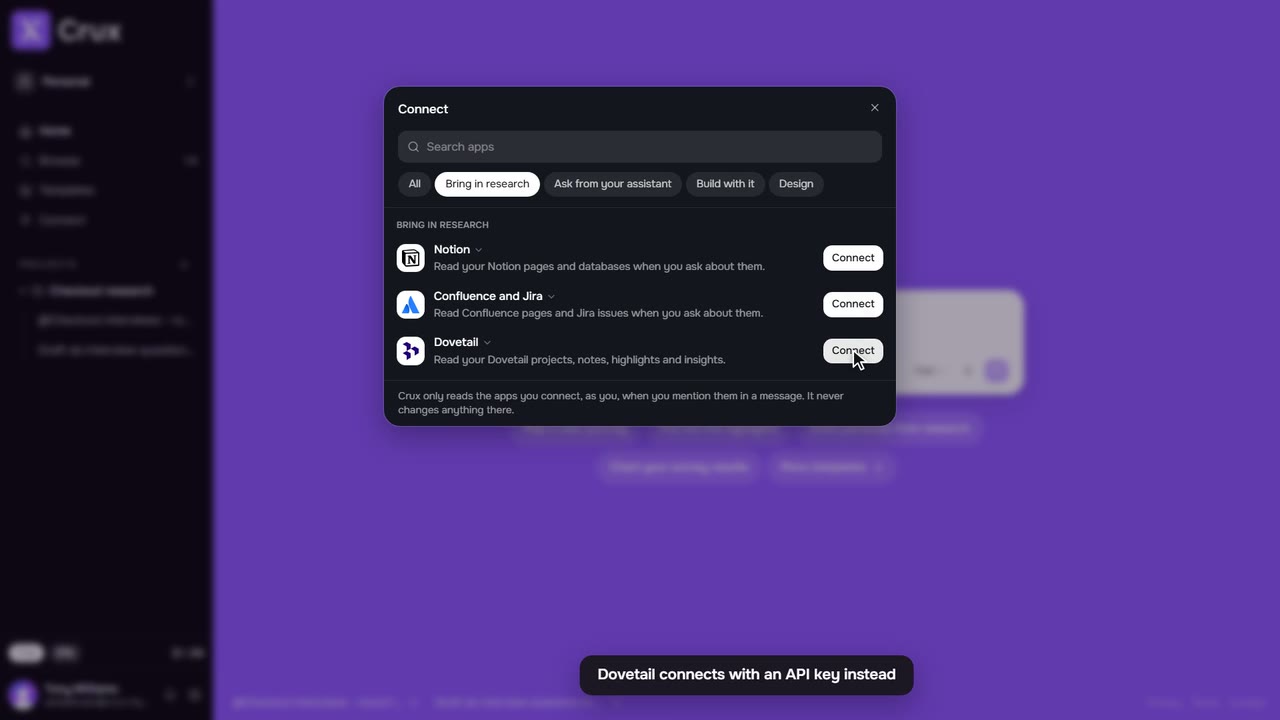
Bring the research you already have into a project. Crux reads documents, spreadsheets and plain text, and transcribes audio and video. Each upload is filed as an item you can ask about and build from.
Step by step
Step 1: Attach a file to a message
In the composer, click +, then Upload a file at the foot of the panel that opens, or paste a file in. It shows as a chip above your message while it uploads.
Step 2: Say what to do with it
Type what you want from the file, such as pull out the key findings, and send. Crux reads it and files what it finds in the project.
Step 3: Or add files in Browse
In Browse, click + and choose Upload file. Crux shows the progress, then opens the file in its own tab.
Step 4: Transcribe recordings
For interviews on audio or video, use the Transcribe a recording template. The transcript is filed beside the recording.
Tips
- Crux reads Word (.docx), text, Markdown, CSV and Excel files, and transcribes MP3, M4A, WAV, MP4, MOV and other audio and video.
- Crux can keep a PDF but cannot read its text yet. Save it as Word or text first if you want Crux to work from it.
- Files can be up to 18 MB on the Free plan and 400 MB on paid plans.