Take your work out of Crux to share with people who are not in it. Exports are made in your browser, so they are ready straight away.
Step by step
Step 1: Choose what to export
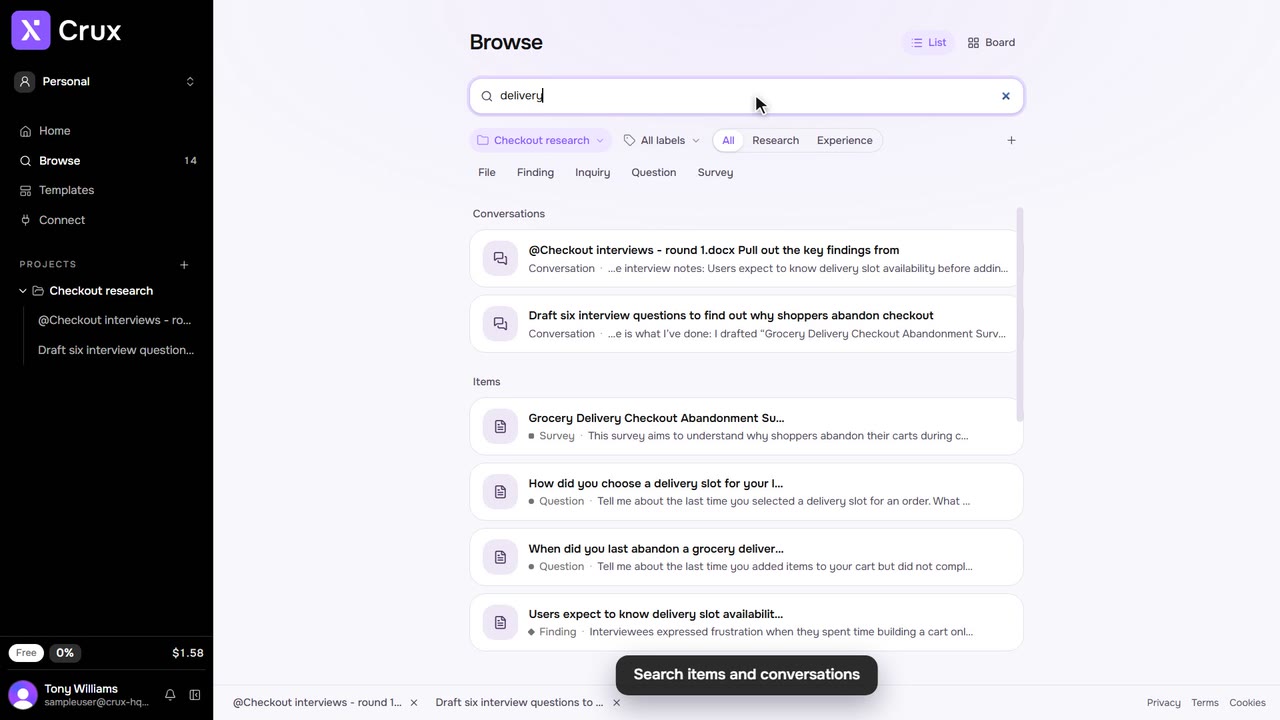
Open an item’s … menu. For several items, select them in Browse and click selected.
Step 2: Pick a format
Choose Download, then Word document or PDF. Spreadsheet is there for tables, journeys, flows, surveys, sitemaps and selections, Original file for uploads, and Transcript text for transcripts.
Step 3: Send it on
Each exported item ends with an Open in Crux link back to it, so anyone with access can open the live version.
Step 4: Or copy it, or share a link
From the … menu, Copy puts the item’s words on the clipboard to paste into a doc, a chat or a ticket. Share copies a link that opens the item in Crux for anyone with access to it.
Tips
- Downloads need a signed-in account.
- There is no whole-project export yet: select the items you want in Browse instead.