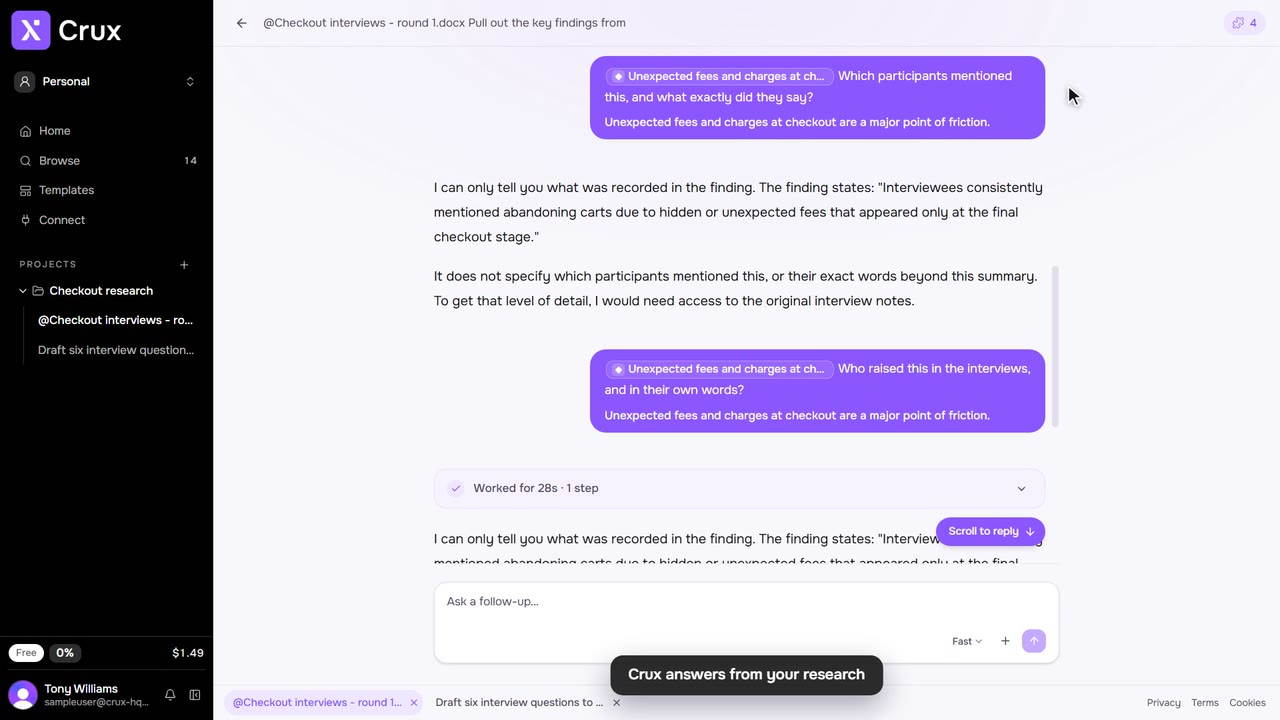
Browse lists everything in your projects: research, experience and uploaded files, with the threads they came from. Search it, narrow it down, and work on several items together.
Step by step
Step 1: Open Browse
Click Browse in the sidebar, or click a project’s name to open Browse on that project.
Step 2: Search
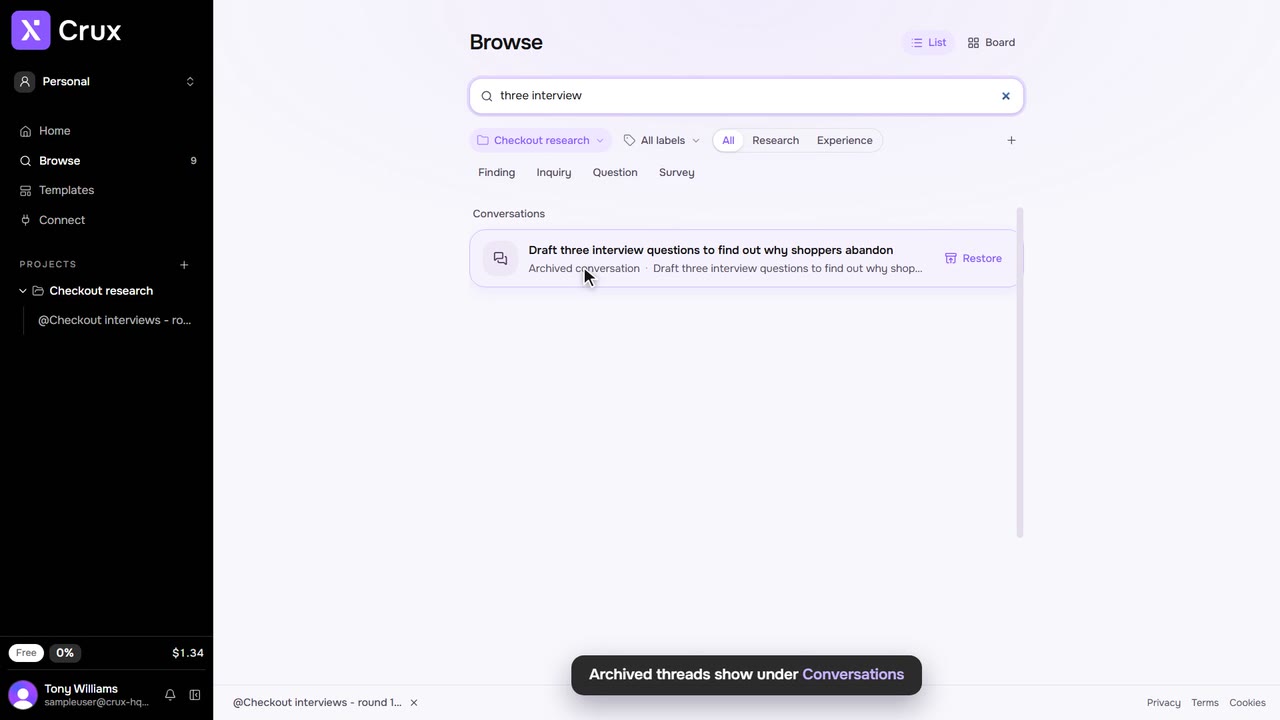
Type in Search items and conversations. Matching threads show under Conversations, archived ones included.
Step 3: Filter
Choose a project or All projects, a label, and All, Research or Experience. Use the kind chips to show only notes, findings, personas and so on.
Step 4: Select several
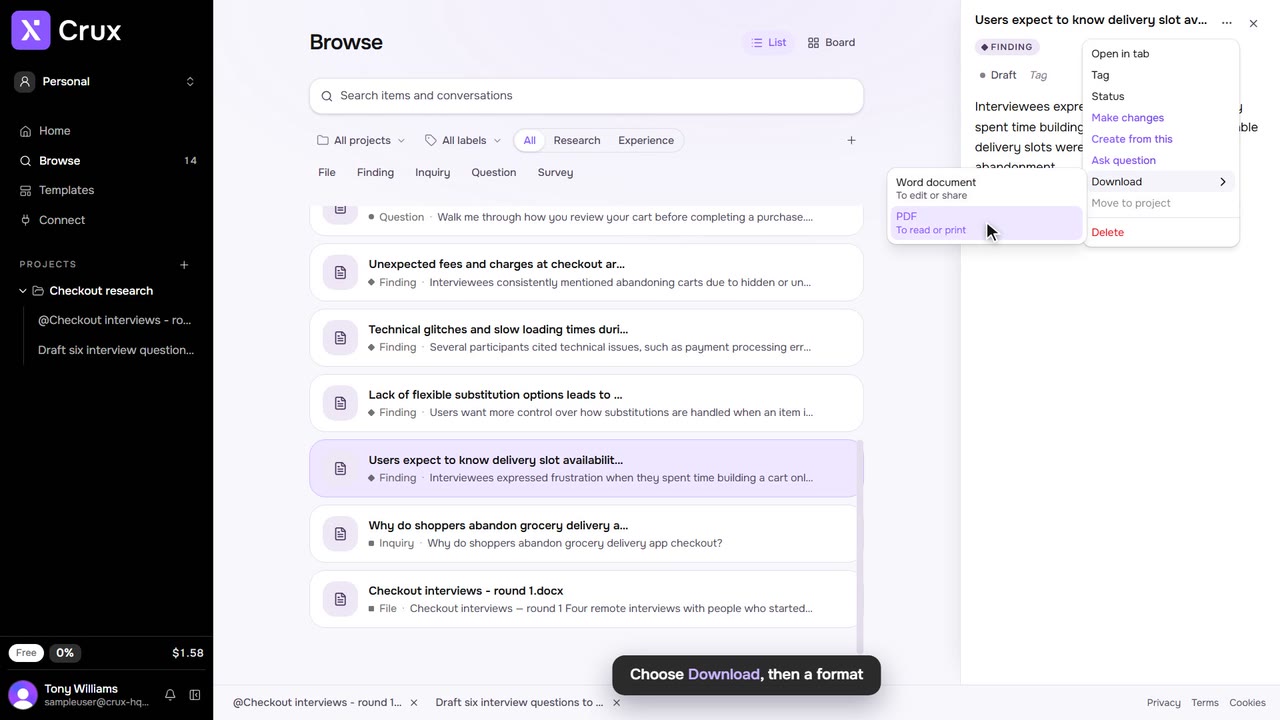
Tick the box beside each item, or Shift-click to select a range. Click selected to tag, download, move, ask about or delete them together.
Step 5: Make one by hand
Click +, choose Create, then Research or Experience and the kind of item. Fill it in and click Create.
Step 6: Sort highlights on the Board
Switch from List to Board. Each highlight is a note, clustered by its labels: drag one into a cluster to label it, or onto New cluster to make a label from it. After highlighting a finding, Show on Board in its … menu opens it there.
Tips
- The Board shows highlights only. Findings, personas and everything else stay in List.
- If your search matches work in other projects, Search all projects widens it.