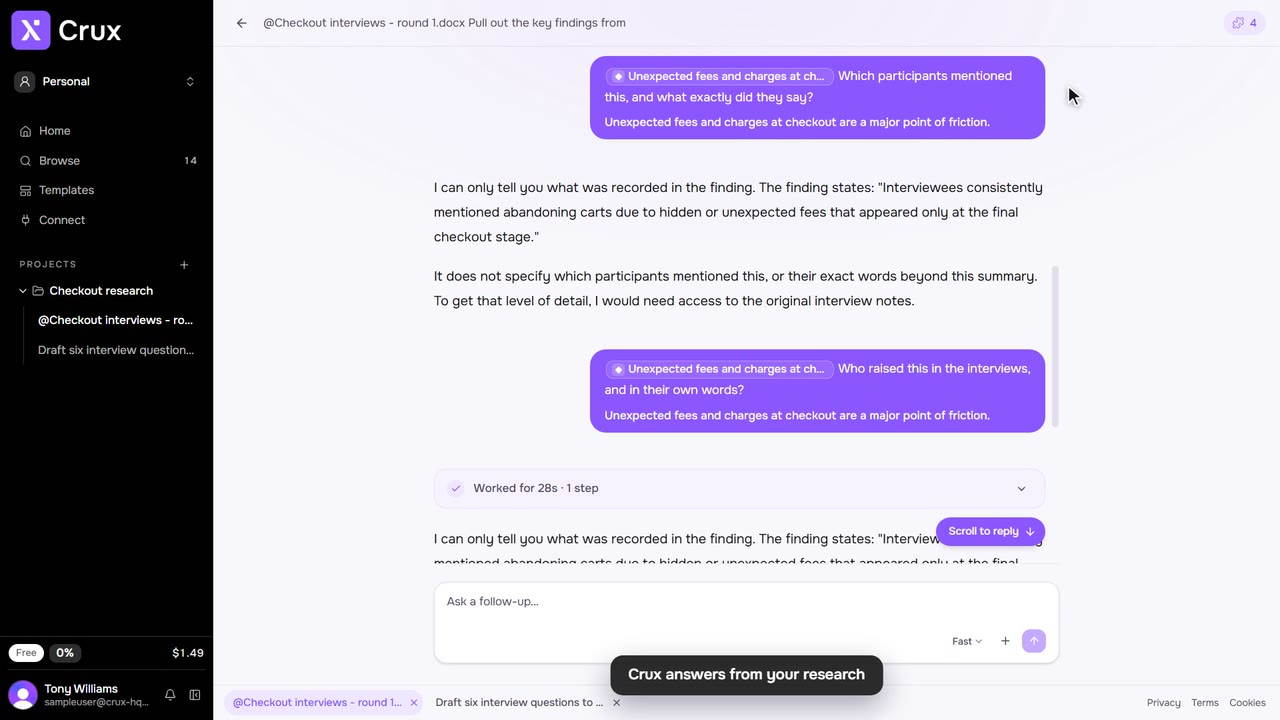
Artefacts are what Crux makes and files in your project: notes, findings, personas, journeys, flows, sitemaps, data tables and more. You can edit every part of them yourself, or tell Crux what to change.
Step by step
Step 1: Open the artefact
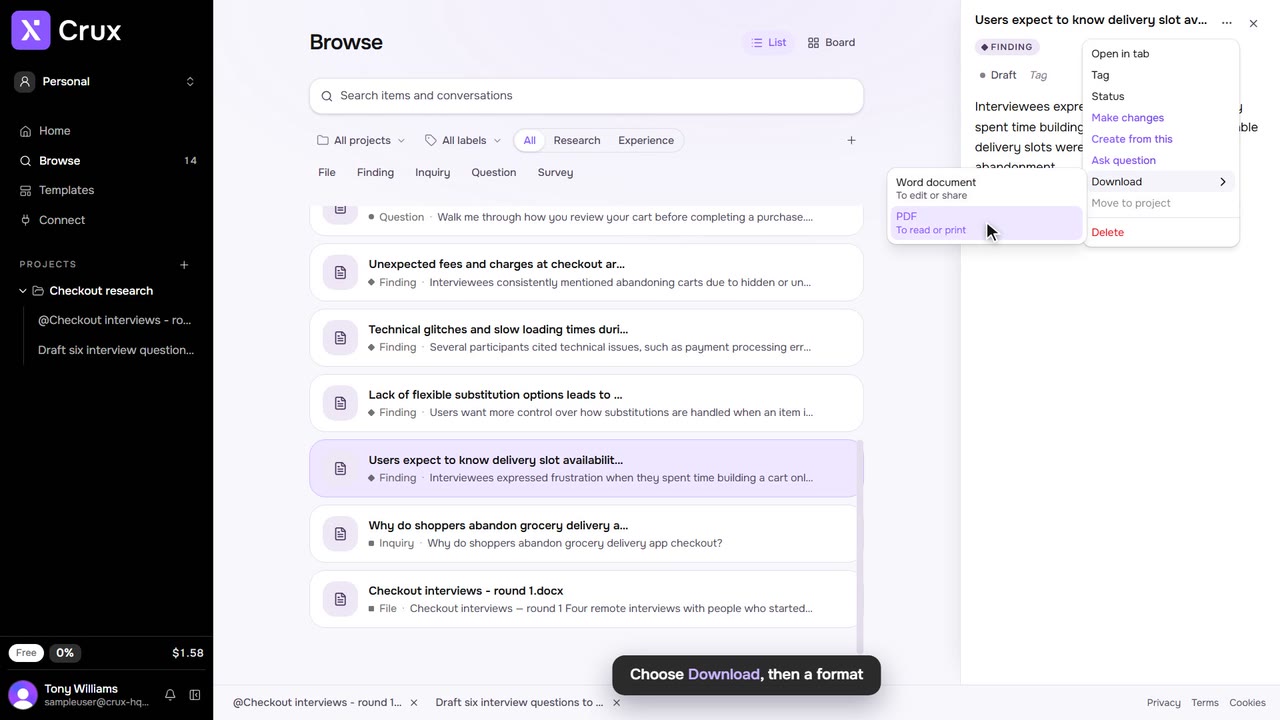
Click it under a reply, in the thread’s artefact counter, or in Browse. It opens beside the thread. Choose Open in tab from its … menu to give it the whole page.
Step 2: Rename it
Hover the title and click the pencil. Type the new title and press Enter.
Step 3: Edit a section
Hover a section and click its pencil. Change the text, then click Save or press Ctrl+Enter (⌘+Enter on a Mac). In a list, put one item per line.
Step 4: Set status and tags
Use the chips under the title. Status goes from Draft to Approved to Published. Experience work also has a confidence: Assumption, Evidenced or Mixed. Tag adds an existing tag or creates one.
Step 5: Highlight what matters
Select words in a note, finding, line of inquiry or experience item and click Highlight, or Tag to highlight them under a label. To highlight a whole finding or line of inquiry, choose Highlight from its … menu. Every highlight shows on the Board in Browse.
Step 6: Or ask Crux to change it
From the … menu choose Make changes, describe the change in Tell the agent what to change… and send.
Tips
- Journeys, flows and sitemaps are edited on the diagram itself: use the menu on each stage, step or column, and the toolbar to add, undo or tidy up.
- If someone else changed the item while you were editing it, Crux tells you rather than overwriting their change.