Work in a project happens in threads, listed under the project in the sidebar. A thread keeps its conversation and every item Crux made in it, so you can pick it up again later.
Step by step
Step 1: Start a thread
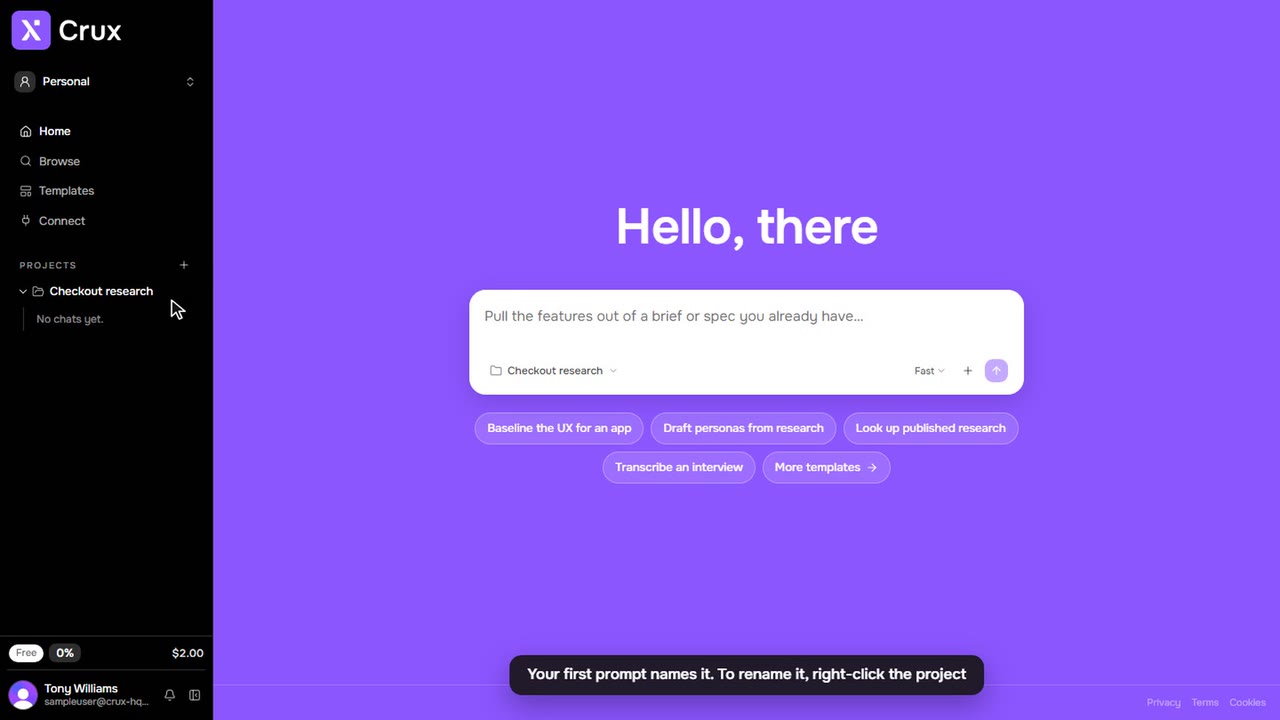
Go to Home, check the project shown in the composer, type what you need and press Enter, or click the send arrow. The thread appears under the project in the sidebar.
Step 2: Watch Crux work
While Crux works, the progress panel shows each step. When it finishes, the reply lists what it made. Click any item to open it beside the thread.
Step 3: Follow up
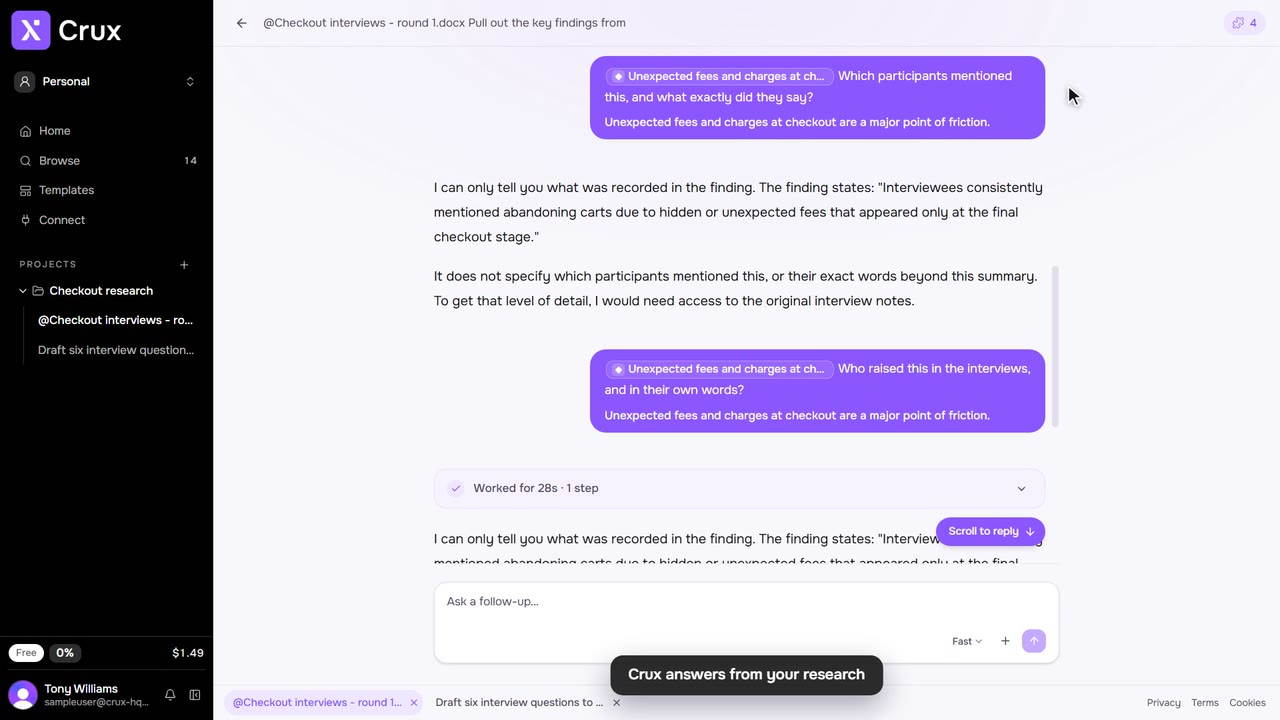
Type in the composer under the reply (Ask a follow-up…) to carry on in the same thread, or click one of the suggested next steps.
Step 4: Move between threads
Click a thread in the sidebar to open it. Open threads and items sit as tabs along the bottom; right-click a tab to close it, or to close the others.
Step 5: Rename, move or archive a thread
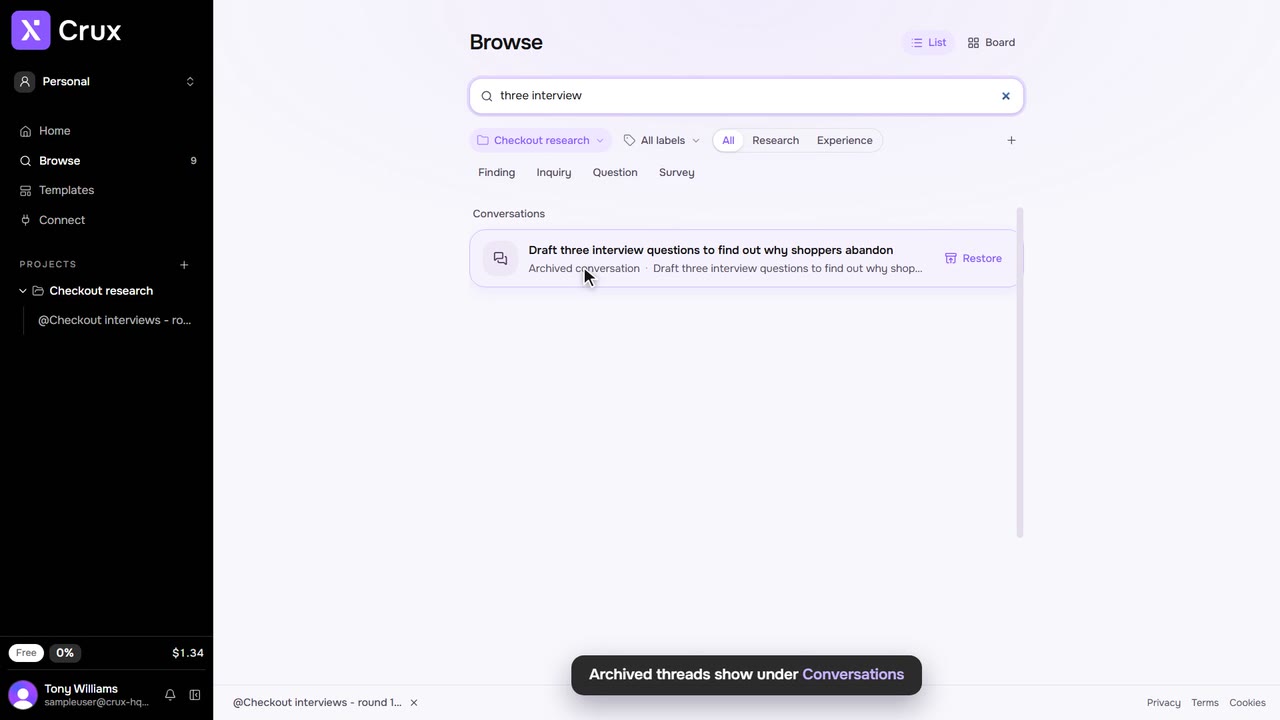
Click … beside the thread in the sidebar (or right-click it) to Rename, Archive or Delete it. Once you have more than one project, Move to moves it into another.
Tips
- The counter in a thread’s header shows how many artefacts it has made. Open it to jump to any of them.
- Choose the model in the composer: Fast for everyday work, Sharp for harder reasoning, and Capable on Pro and Teams plans.